eBay: How to Integrate
This guide explains step-by-step how to integrate your eBay account with Linnworks.
To add a new channel
- Go to Settings > Channel Integration > + Add new.
- Select eBay from the list of available channels.
- Click Integrate.
eBay Channel Integration Wizard
Now you will need to complete 5 steps from the eBay Channel Integration Wizard.
Step 1.
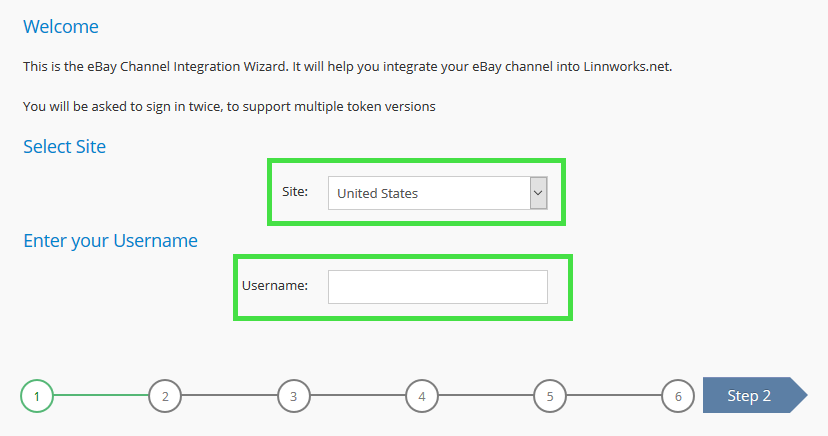
Select eBay Site from the drop-down menu, specify the Username of your eBay account, and click Step 2
Step 2.
The eBay token service provides access tokens via two different grant flows:
- Client credentials grant flow mints a new Application access token.
- Authorization code grant flow mints a new User access token.
This means that you will need to sign in to your account twice during channel integration as you have two incompatible tokens to authorize.
During the 1st sign-in click the link under the header called Authorise eBay. This will open up your default browser and take you to the eBay Sign-in page. Log in using your eBay credentials.
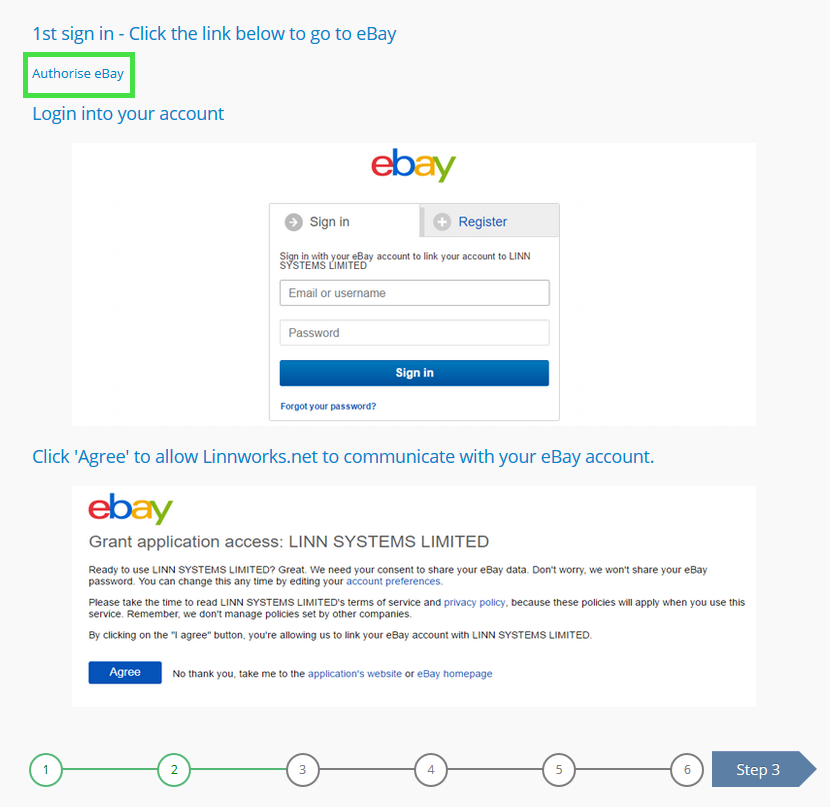
eBay will open a Grant application access page asking you to give your permission to share your eBay data with Linnworks. Read our Privacy Policy and if you are happy to go ahead, click Agree and go to Step 3.
Step 3.
2nd sign-in is required to authorize the second token. Click Authorise eBay's new APIs:
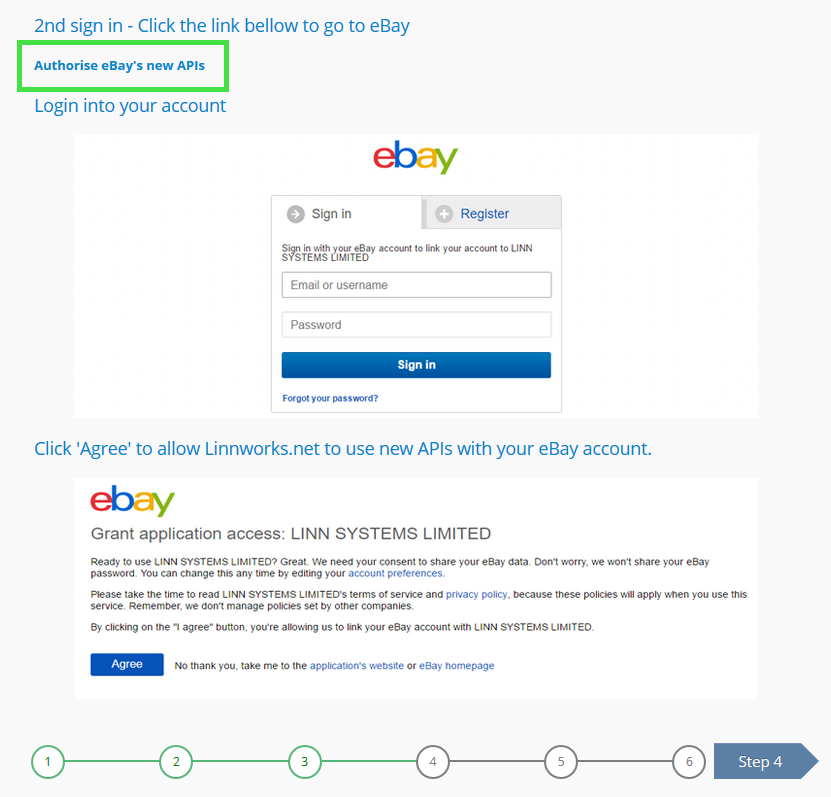
Click Agree It is now safe to close the eBay pop-up window and continue with channel configuration in the next step.
Step 4.
Select which actions you need Linnworks to perform:
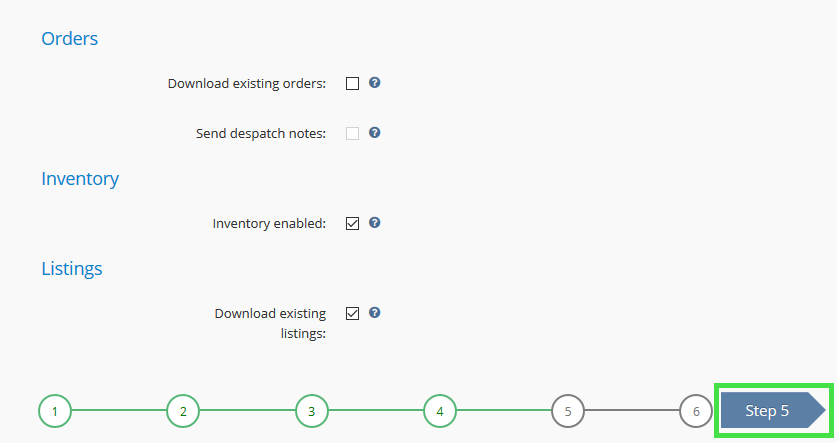
Orders
- Download existing orders: Tick this box for Linnworks to retrieve your orders from the eBay channel.
- Send dispatch notes: Tick this box to mark orders as shipped on eBay when they are processed in Linnworks.
Inventory
- Inventory enabled: Tick this box to change the available quantity on eBay for linked stock items when your stock level changes in Linnworks.
Listings
- Download existing listings: Tick this box for Linnworks to retrieve your active listings so that they can be mapped to inventory items to track stock levels.
Step 5.
Select more actions you need Linnworks to perform:
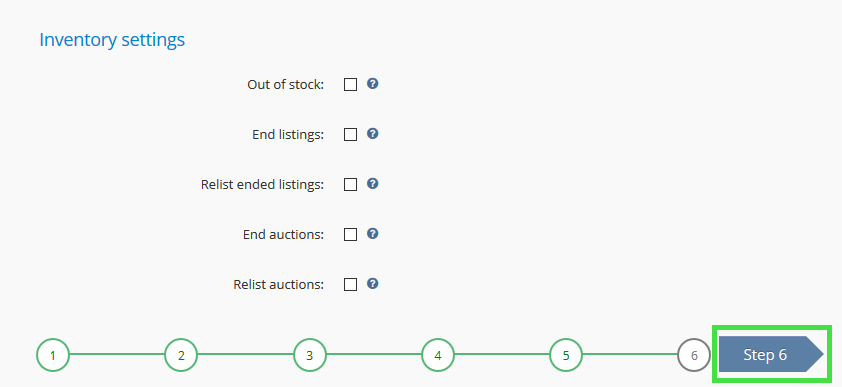
Inventory Settings
- Out of stock: Tick this box to enable the out-of-stock feature for GTC listings.
- End listings: Tick this box to end listings that have run out of stock.
- Relist-ended listings: Tick this box to relist listings that have ended but still have stock remaining.
- End auctions: Tick this box to be able to end auctions.
- Relist auction: Tick this box to be able to relist auctions.
Step 6.
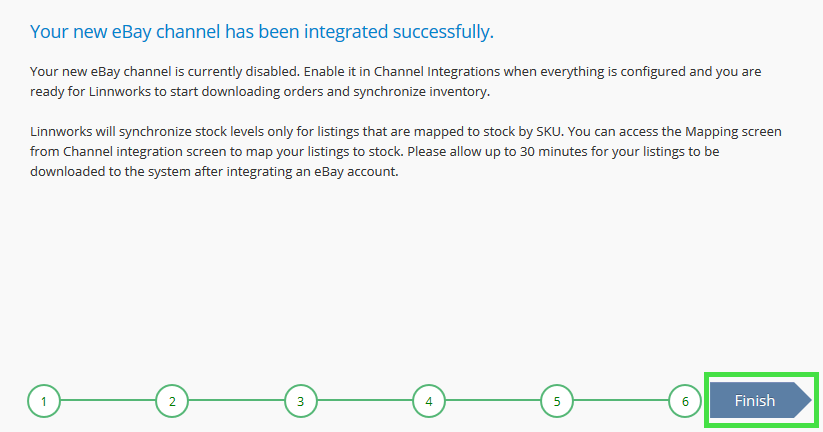
Now your channel is successfully integrated. Click Finish and you can get started.