Important: This feature is currently available only to existing customers who already use it. To focus on improving features that deliver the most value to our customers, this feature is no longer being enhanced or enabled for new customers.
When you have distributed inventory and multiple warehouses (Linnworks locations), you often purchase the same products/items from different suppliers.
For example, if you have a warehouse in the UK, you purchase items from a supplier who is also in the UK so that it arrives quickly and you do not have to pay extra taxes. But if you have a warehouse in Germany, you might purchase these same items from a supplier in France or any other nearby country that can deliver items quickly and with no added expenses for customs. The prices, delivery times, and minimum order quantities will vary depending on the supplier and the location to which they deliver products.
You can also choose to use the same supplier for all your products. However, since the products are being delivered to different warehouses, the delivery times and order quantities may vary for each warehouse.
To address this, Linnworks allows you to select a default supplier per item for each warehouse and set up supplier details individually. This way, when you raise a purchase order (PO) for a specific item, the system automatically selects the default supplier associated with that particular location.
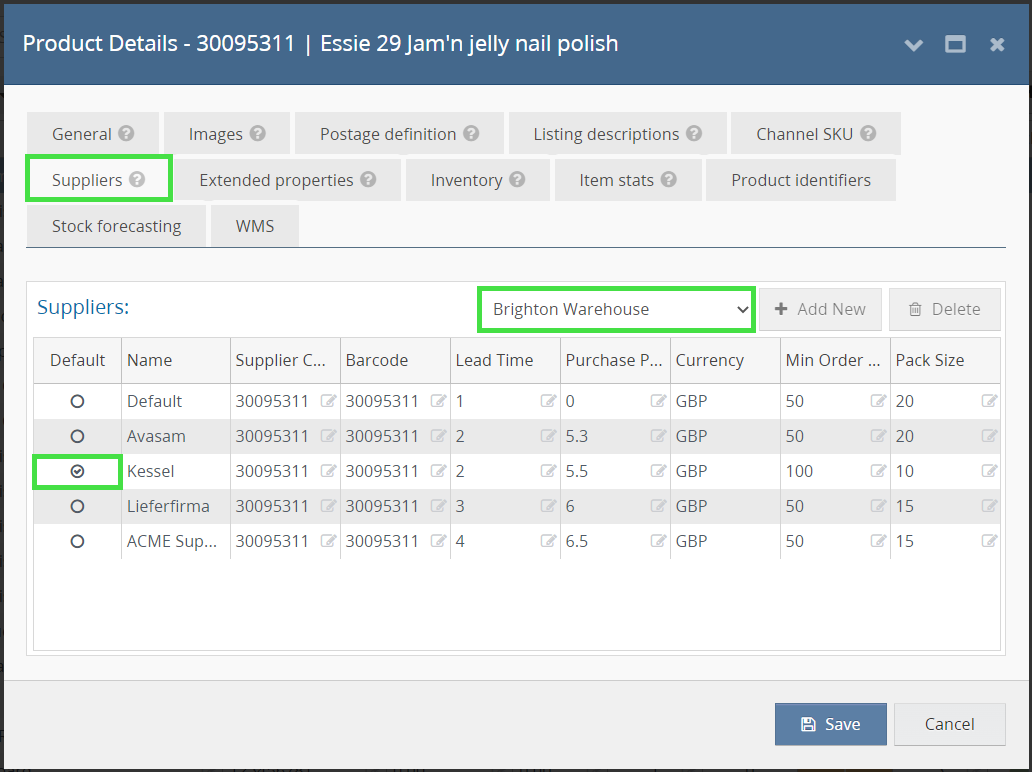
Having location-specific suppliers allows you to optimize inventory management by efficiently sourcing products for each warehouse individually. This approach enables you to track inventory accurately and ensure that the right products are available at the right location when needed.
Below are some additional key advantages of using location-specific suppliers:
Verify you have added all your suppliers to Linnworks and entered their information in the main Suppliers screen.
You can manually assign location-specific suppliers to items or do that in bulk via import.
You can configure location-specific suppliers for your items in bulk using the Stock Supplier Details import in the Import Data tool. Full details on how to use this import are covered in this guide.
You can also use the Inventory Supplier export type to see which suppliers are set as the default and non-default for your items at each location. After exporting the inventory supplier data, you can open the exported file and sort it by location or a particular item to review the default supplier information and determine if any changes are necessary.
If any changes are needed, you can update them manually or by using the Stock Supplier Details import once more.
The Global Suppliers option is also available for selection when setting up location-specific suppliers. This option allows you to configure a supplier who is a valid supplier for all your locations. You can use this option when you do not have distributed inventory and use the same supplier to purchase and deliver items to your warehouse(s).
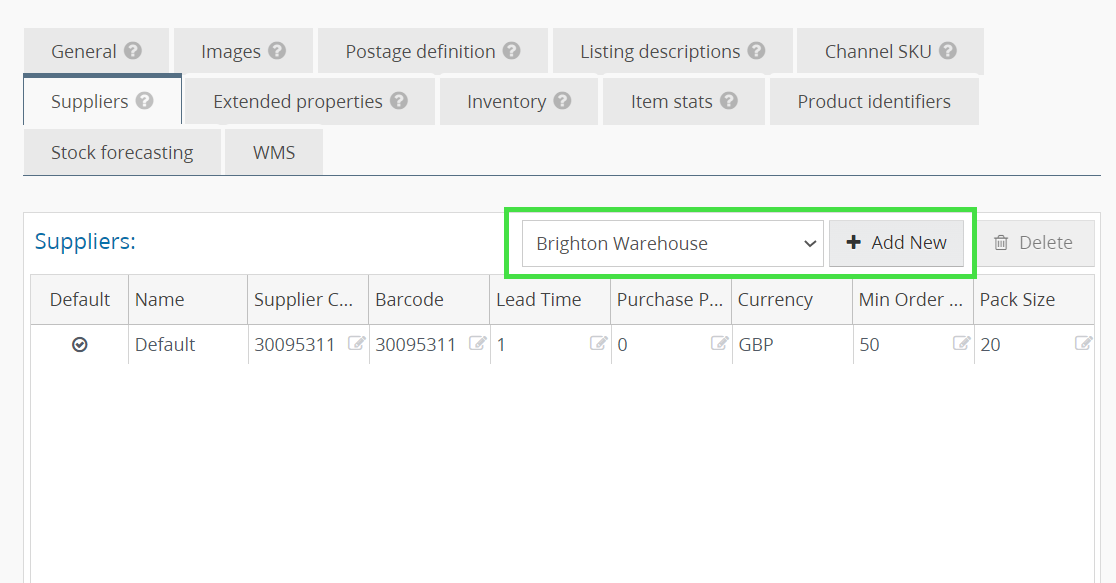
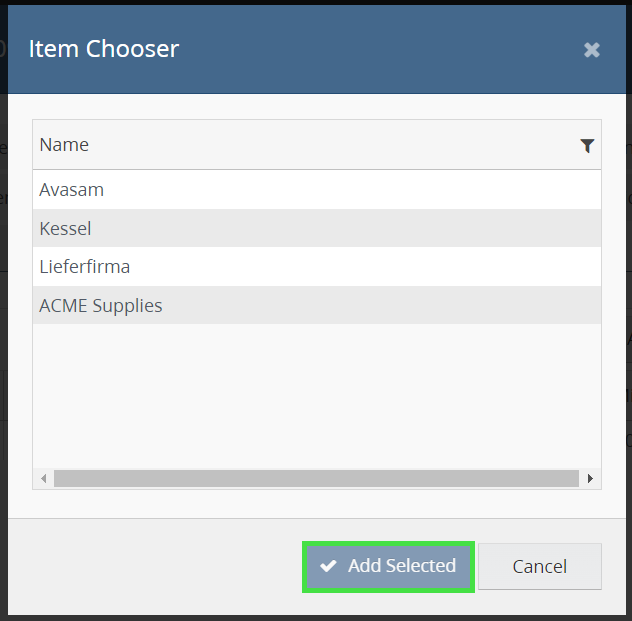
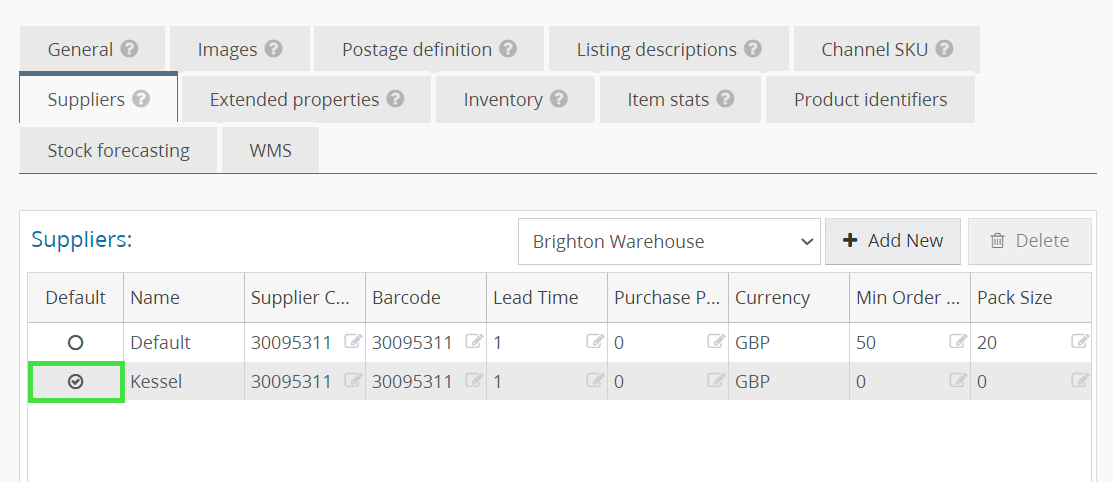
To set up a global supplier:
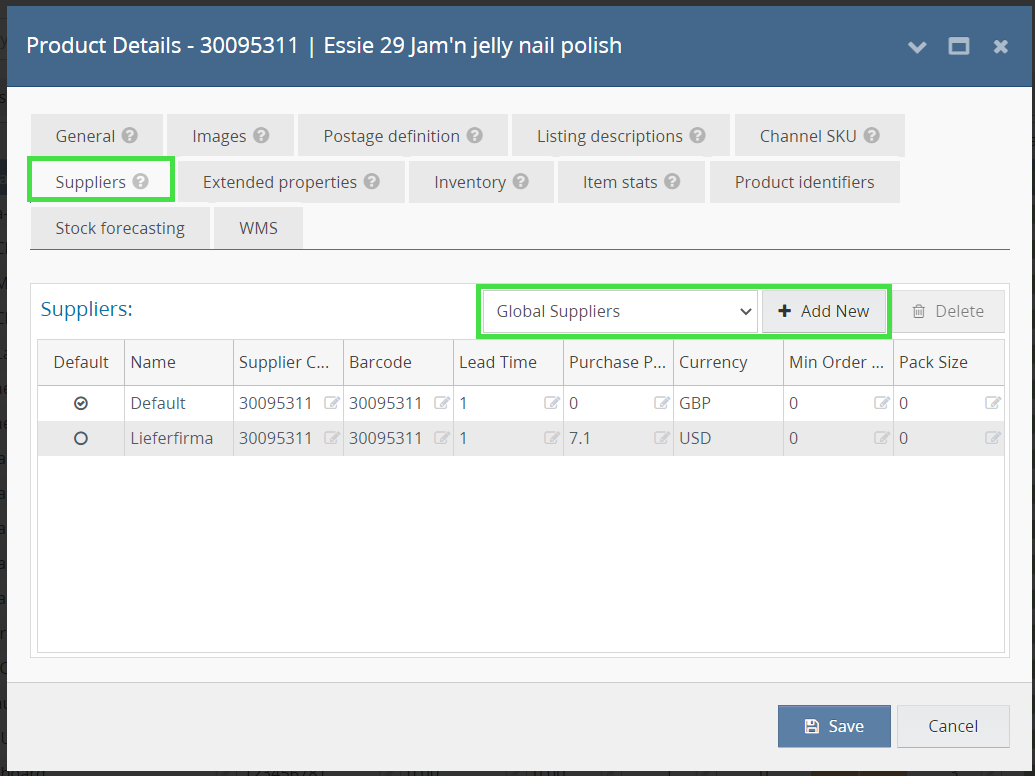
You can add, update and delete global suppliers whenever required.
Note that adding and configuring a Global Supplier can only be done manually. Currently, the Stock Supplier Details import does not support bulk configurations of global suppliers.
In this section of the guide, you can quickly examine various screens and features within Linnworks and learn how location-specific suppliers enhance the functioning of these screens/features.
You can create a separate inventory view or use the All columns view in the My Inventory screen to see the default supplier of each item for the selected location.
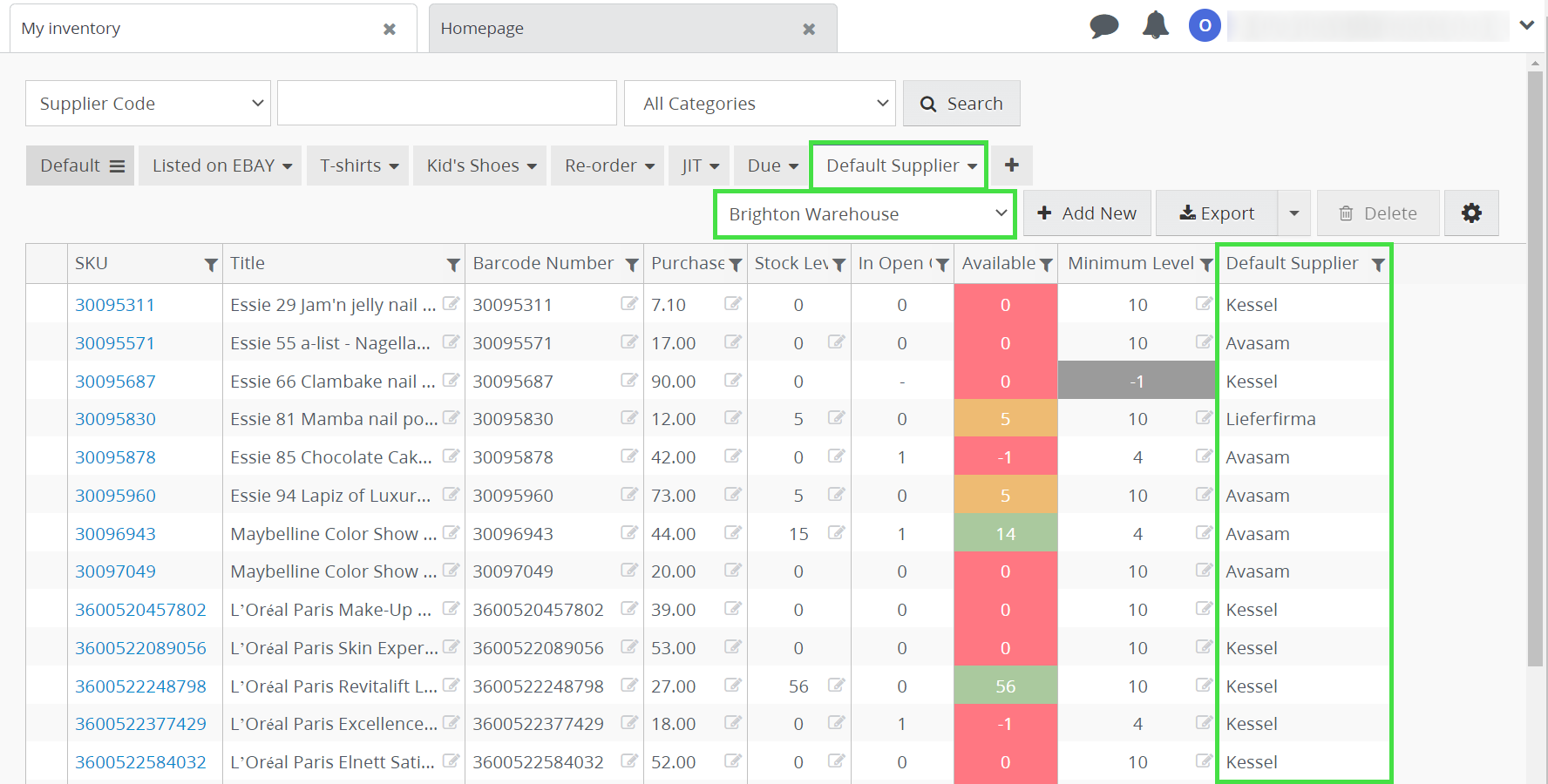
This process assists in identifying the specific items and suppliers you should order from to ensure that the chosen warehouse location does not run out of stock. You can then raise a PO using one of the available methods, either from the My Inventory screen, Purchase Orders, etc.
Duplicating an item in My Inventory will also duplicate the information about the suppliers and save it for the new item. You can change this information manually or via import.
Select the appropriate location when you raise a PO for a specific item(s) in the Purchase Orders screen. Linnworks will then automatically select the default supplier linked to that particular location for the item(s) and pick up the supplier details, including their code, barcode, quantity, pack size (if applicable), and item unit cost.
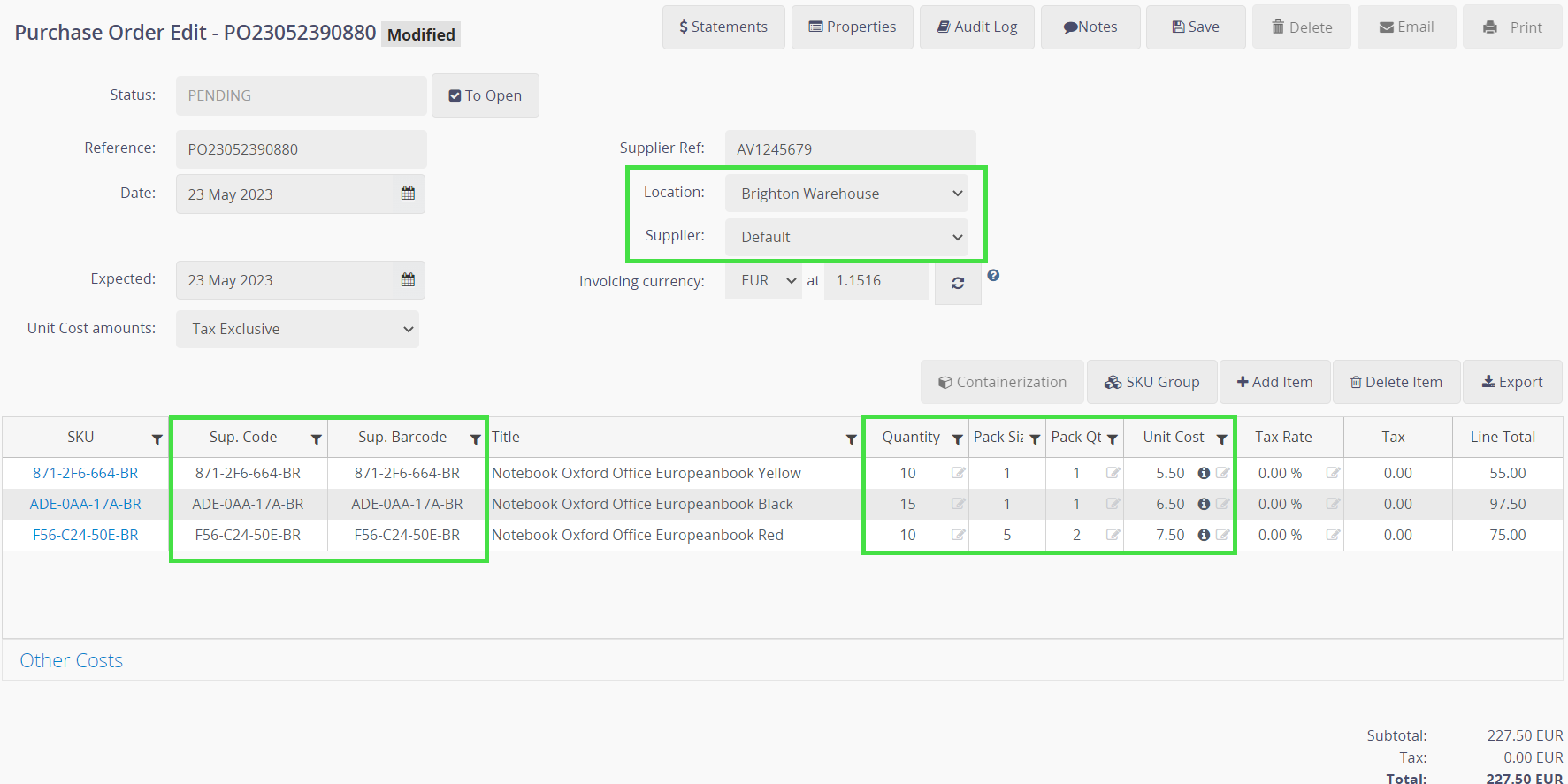
Leaving the supplier as default and switching between locations will update the item's information according to the default supplier in that location.
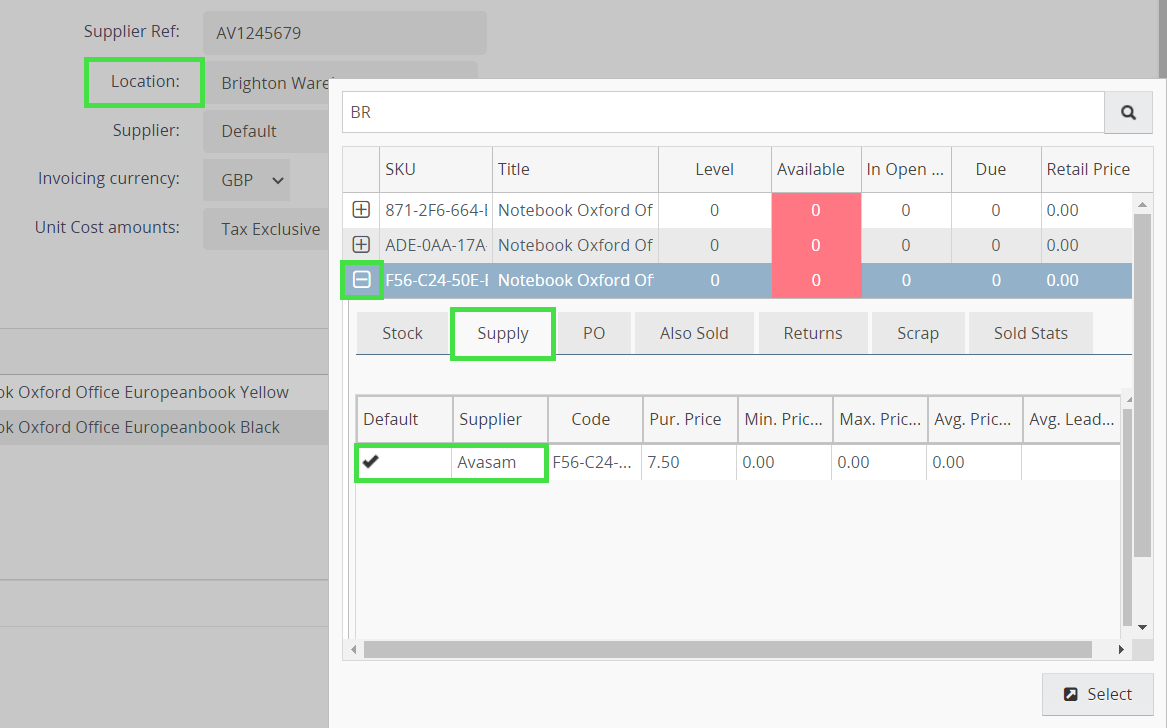
The stock finder in the Purchase Orders screen now displays the item's default supplier in the selected location so that you can make sure you are ordering the correct items from the correct supplier.
If you often use the WarehouseTransfers screen and move packed products between your warehouses, it is crucial to indicate the size of each pack for every item in the Supplier tab. The pack size depends on the number of products your supplier delivers to each location. Even if it is the same supplier, they may deliver different quantities in packs for different locations.
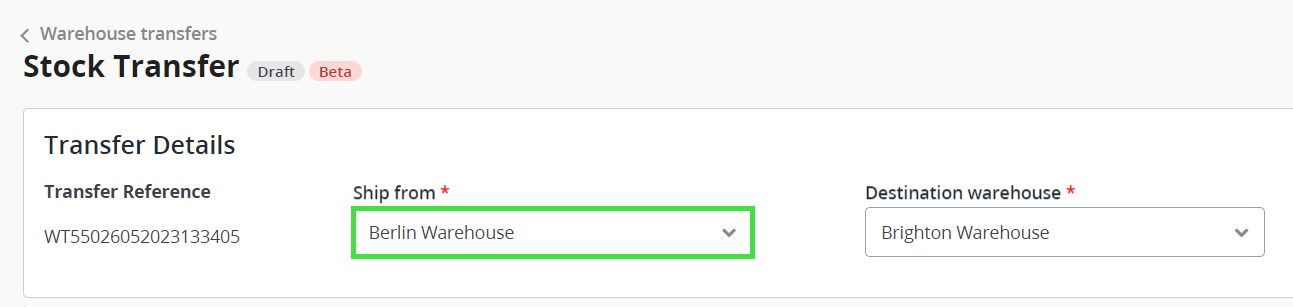
When you create a new warehouse transfer and change the Ship from location, the system will automatically select the correct pack size based on the specific location and the default supplier assigned to that location.
If you regularly use Linnworks Stock Forecasting functionality and the Stock Forecasting Dashboard, we suggest setting up and assigning location-specific suppliers to your items to improve the accuracy of restocking predictions. Location-specific suppliers allow you to have lead times specific to a location, so reordering suggestions in the Stock Forecasting Dashboard > Stock at risk widget are more accurate.
If you regularly use Linnworks Reorder Low Stock functionality, we suggest setting up and assigning location-specific suppliers to your items to improve the accuracy of restocking suggestions. Location-specific suppliers allow you to have lead times specific to a location, so reordering suggestions in the Reorder Low Stock screen are more accurate.